

How I Take and Retrieve Notes with Obsidian and Zotero
and a pro-gamer tip to syncing your Zotero PDFs FOR FREE

critic of political economy is supported by your own subscriptions and donates. If you aren’t already one, you can become a paid subscriber on Substack or make a one time donation of a ★🚩revolution🚩★ here . If you’re Canadian, you can email me at criticofpoliticaleconomy@proton.me to set up an account and pay with etransfer, as this avoids fees and taxes for me and the exchange rate for you.
Over the past three years I’ve done a lot of work developing my own research workflow. I’ve been wanting to write more about it, and a mutual on twitter recently made a comment regarding note-taking that I wanted to expand on. They said:
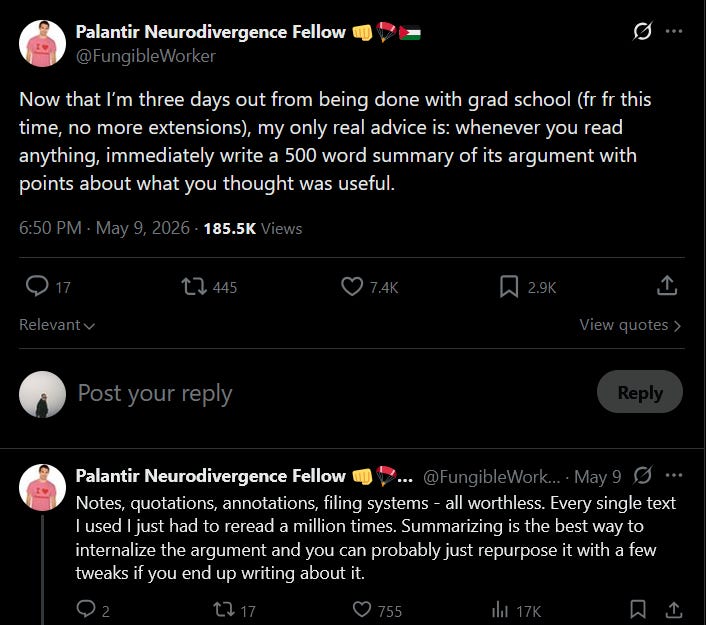
I thought the conversation around this tweet was a good excuse to quickly jot down how I approach personal knowledge management and how it’s been helping me become a better researcher. Here are a few tips that give an introduction into what I’ve been doing. In the future, I want to make a more comprehensive workshop, but I’m still getting there.
Use Zotero For Storing and Reading PDFs
Zotero is a free application that helps you collect, organize, and cite your research sources. Zotero makes reading, writing and citing a lot easier by storing PDFs and reference information all in one place.
Some things you can do with Zotero include:
Store citations for books, articles, and webpages.
For webpages it takes a screenshot of the webpage that you can markdown.
Sync between multiple devices (more on how to get this for free below)
Organize citations into folders for projects. You can organize the same citation in multiple folders at a time.
Store PDFs and sync them between devices (see below to get free syncing).
Annotate and write on PDFs.
Take notes and export markdown files.
Connect it to Word and insert citations and bibliographies which update automatically as you add citations.
and more!
But there’s one trick that could make Zotero even more useful if you read on say a tablet or your phone, and it’s free!

Syncing with Zotero for Free
Time for a pro-gamer move. Zotero has a feature that allows you to sync your library across devices. This means that along with the details of the citation it allows you to upload PDFs and it will sync your files, notes and annotations. However, the service typically costs around 80 dollars USD a year for about 5GBs. This can become filled very quickly if you plan on putting all your PDFs there.
However, there’s a completely legitimate way to get a free 10gb. By using the service Koofr, you are able to sign up for an account and set up syncing within Zotero. Also if you ever really need more storage, you can get an additional 15gb for about 15 dollars a year (10 EUR).
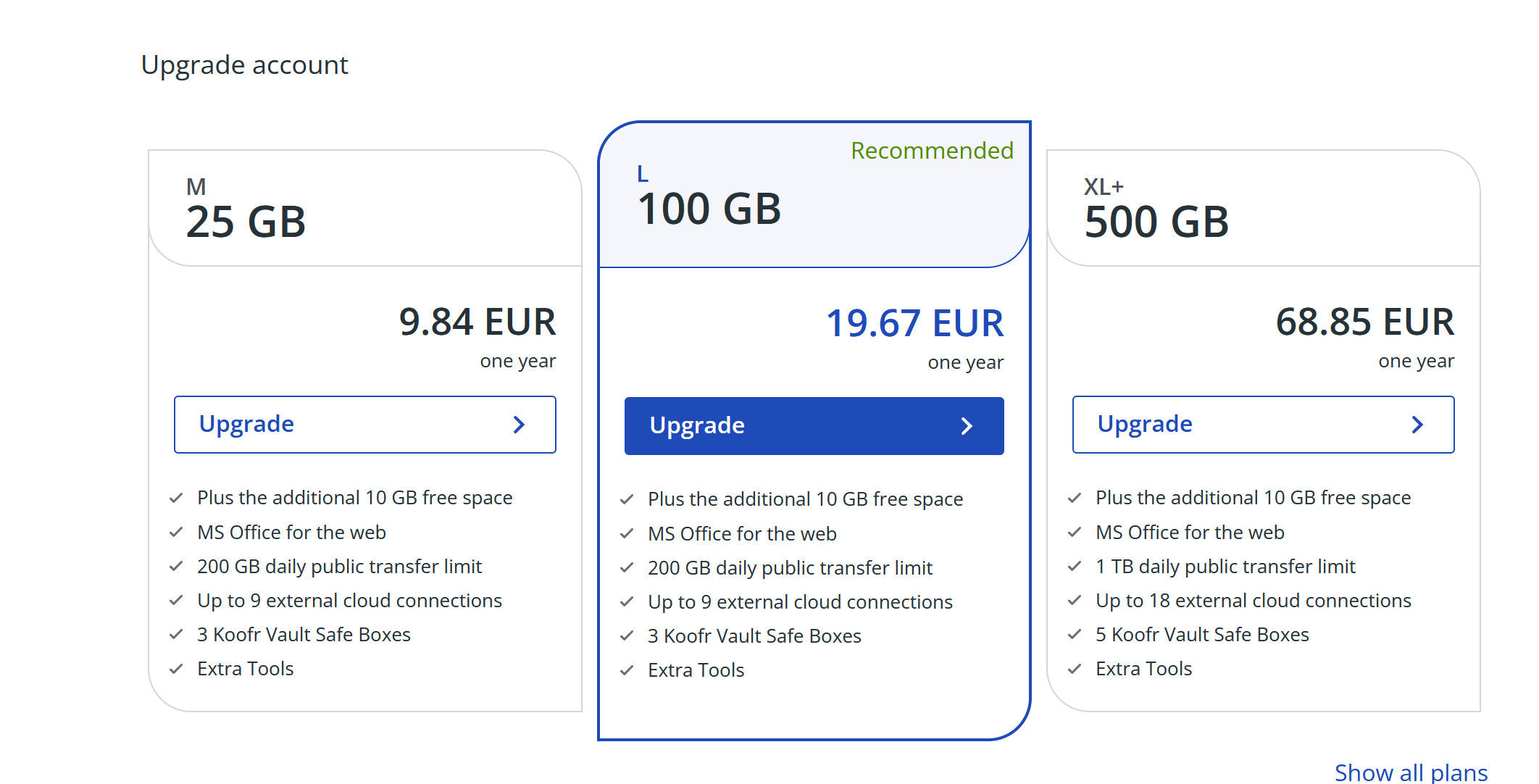
It is not difficult, and it only takes a few minutes. Follow this guide to set it up and start using your syncing right away! If you’re interested, I have a list of good plugins to use in the appendix.
Use Obsidian For Note-taking and retrieval
Obsidian is a free markdown based note-taking app. The real thing that makes this app a game changer is that you’re able to easily create links between the notes and navigate between them all within the same application. All you have to do is put a word/phrase in [[]] and bam you have a link.
I cannot stress how much time this saves when you are working on a project. Docs are slow, and while I still use them to write the proper final pieces, Obsidian is the note-taking king. There’s two types of notes I take with Obsidian I want to discuss here: reference notes and zettels
First, reference notes are pages (the name of files in Obsidian) that are about a paper, book, webpage, movie, youtube video, a report or anything else. I have a template I developed based on a mix of writing my own notes and importing my highlights from Zotero.
Last year I had a professor give a really great template suggestion with various headers for taking resource notes. Essentially, they suggested that any note on a resource should have three main things:
Summary: in 1-2 sentences MAX, summarize the text. Really capture the most important part, and remember this also depends on what’s of interest to your (these are ultimately your notes).
Key Ideas: write down 1-3 key ideas that you think are relevant for your own personal knowledge. These could be anything from a theoretical point, to an argument, to key facts. I tend to emphasize arguments.
Related Texts: Finally, write down related texts/notes that you think are relevant to this one. In Obsidian, this means link any internal (or external) page within your system to this note.
Terms: Finally, while my professor did not suggest this, I added a terms section from important terms that I can link to. This is different from the related section as that can be any page, whereas this is meant to be just a term (i.e. a zettel).
Overall, I’ve found this system to work very well and I’ve only just now started to use it to the fullest. I didn’t fill out the summary and key points parts for everything during my courses because I was doing way too many and didn’t have time. But now for my exams, I will definitely do so.
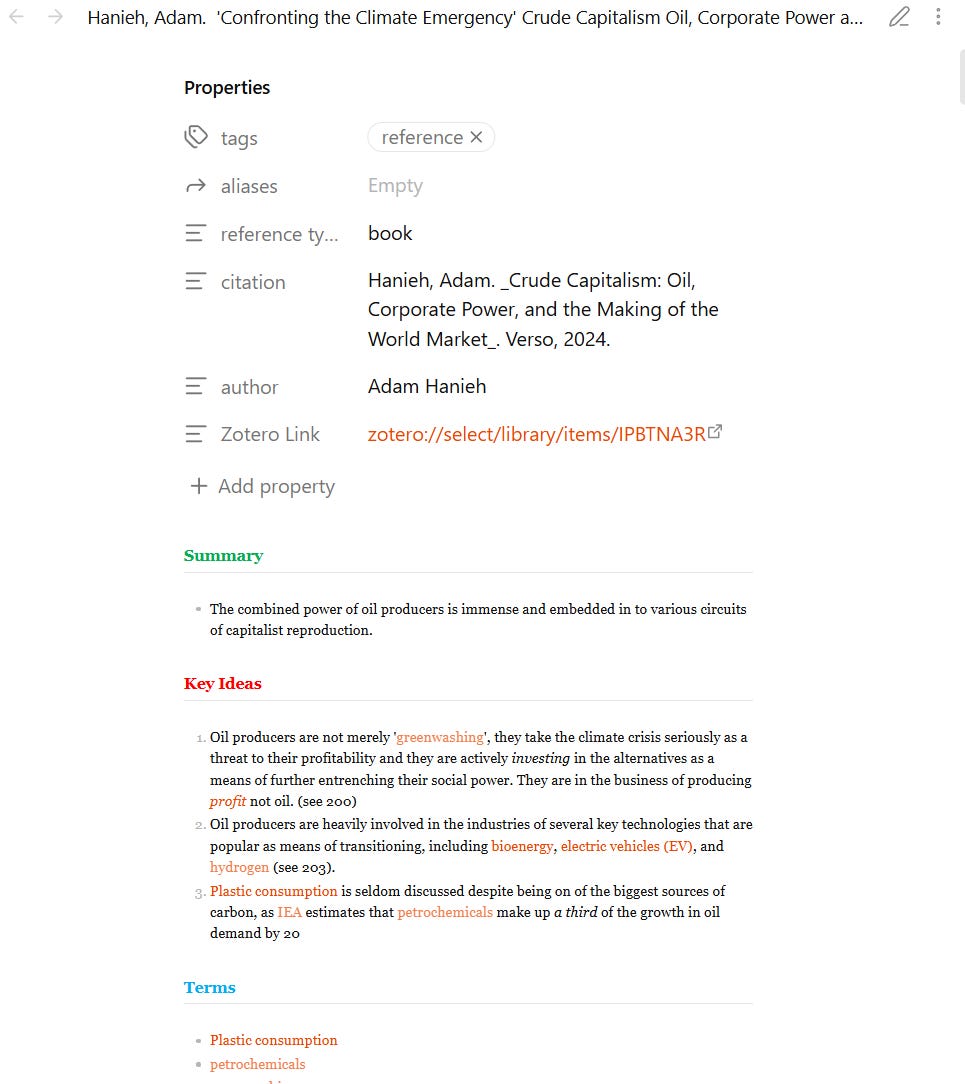
To show how I use this system, I’ve added a picture of my notes from the last chapter of Hanieh’s Crude Capitalism. You see the colored words? Those are page links, and when they are less bright, that means they are links to pages I have not yet created. This is great because it sets the stage for future writing before you’ve even done it.
Now there’s one more thing I want to talk about, and that’s annotations. I agree that honestly, highlights are mostly useless. You end up just wasting time marking things down that are not actually that much easier to access. That is why I use a system that integrates Zotero highlights and Obsidian notes to make retrieving information actually possible.
What I do is that I import my highlights from the readings into Obsidian so that I can then search for them. Using a template, I am able to combine this with the Zotero integration plugin. What my template does other than what we’ve seen above is that it organizes things based on categories. You can find the template here, just copy and paste this into an Obsidian page.
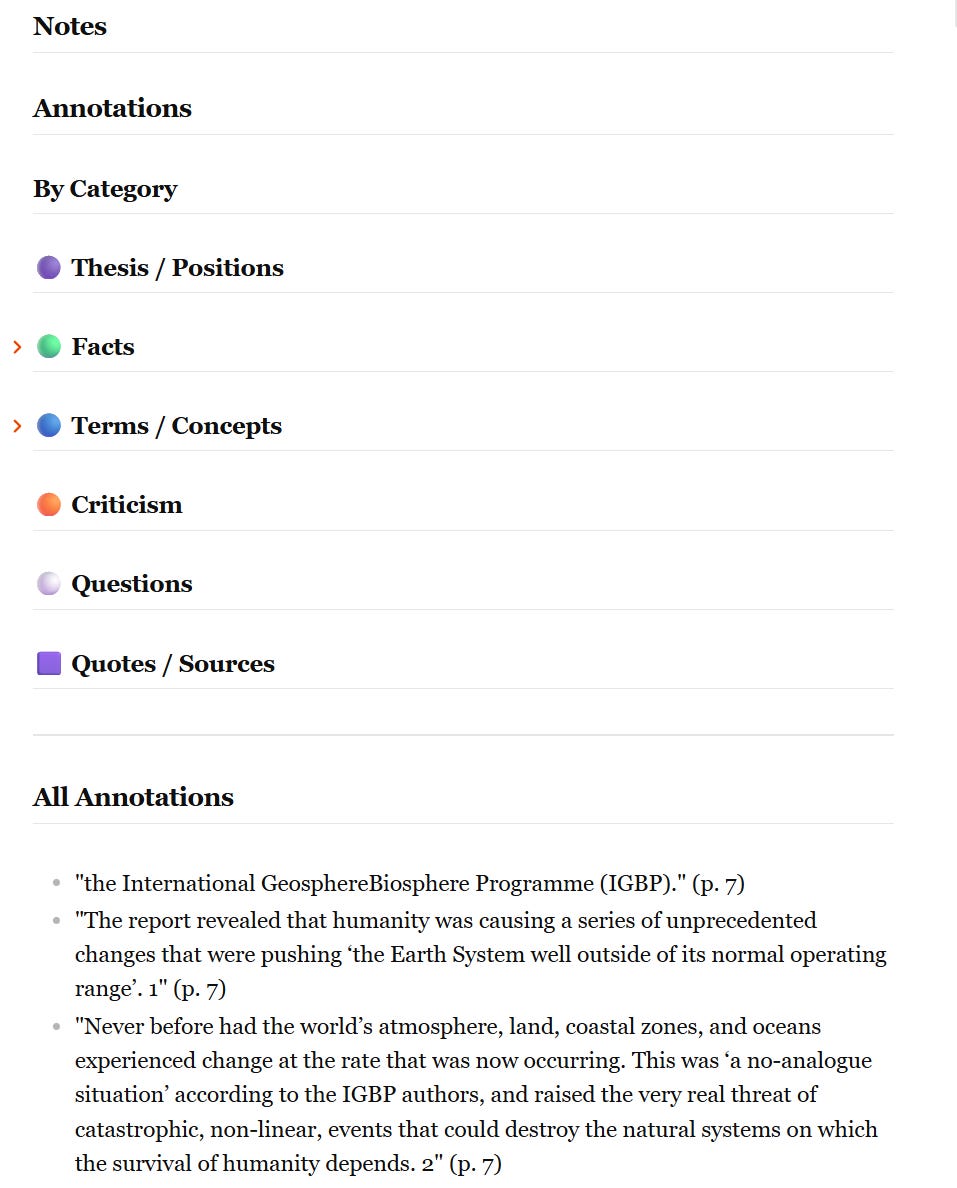
Now what it also does is that any comment made on Zotero highlights then becomes a header above the words. I did this in all my gradschool courses, but frankly I’m gonna stop. In my head, I thought it would be great to have all these headers and be able to look through them, but then I realized why would I do that when I can just import and search? For example, here I look up the word “surplus” and look at all the notes that contain these words, how many times, and quickly look at where. I’m not going to go through this extensively because it’s all on Obsidian’s guides. The point is that this is the best way to collect and retrieve knowledge for research and writing purposes.
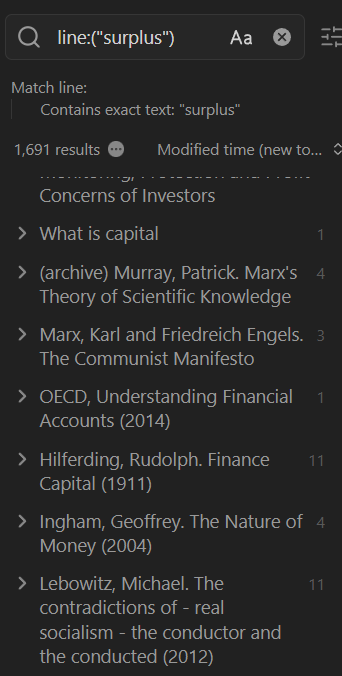
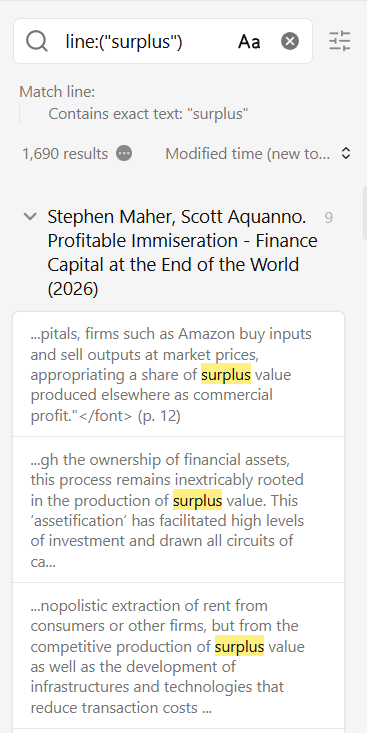
Now onto the zettels. I’ve already written a piece introducing zettels so I don’t want to go too in depth. Basically, these are small “atomic” notes that act like slip cards explaining a specific term. It doesn’t have to be a term, but it could be a place, person, or thing, it doesn’t really matter. As I said in my piece
...I use “zettels“ to take notes on terms, concepts, events, people or any other myriad of potential ‘things’ I want to better understand. These notes are always developing, expanding as I learn more. I connect them to other notes, and I cite the sources where I got the information
The main things your zettels should be are 1) short and focused mainly on one category 2) evolving. For example, the zettel I made on balance sheets talks about a lot of things, such as assets and liabilities. While I define these things, I don’t go into them in depth. I could (and eventually will) add a lot more to this note. But that’s the point, it’s always evolving, it’s something that I can work on slowly and slowly.
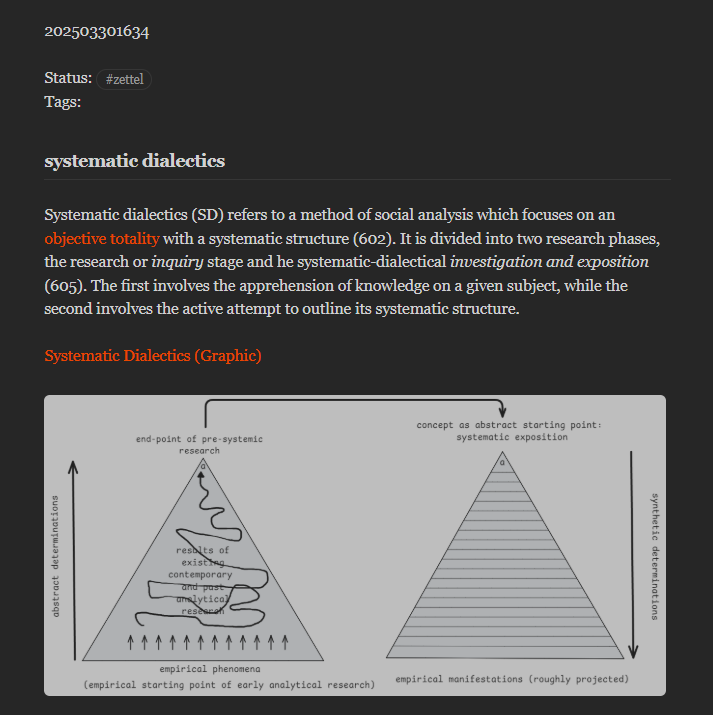
The combination of resource and zettel notes is only one part of the workflow I’m trying to make. Again, this process is evolving and I don’t know how things will end up. But the fun is in the process itself, and I’ve come a long way and managed to get through a lot with this system. After 6 full time graduate courses, 2 TAships, and 2 grant applications, I can say using Obsidian and Zotero has helped me a lot.
I want to end on a point regarding mindset. The whole point of this is for you to build your own knowledge. This is not meant to be definitive, and the notes will change and transfer as time goes on. The important point is to constantly be creating, making new things, and learning. Learning is doing. Don’t be afraid to change and experiment with things you think will work best for you. Remember these words:

And most importantly, make sure whatever you do helps you take action.
If you enjoy my work and want to support it, the best thing you can do is like, repost and share it on other platforms. The most important thing is that people learn something from my work!.
You can also become a paid subscriber on Substack or make a one time donation of a ★🚩revolution🚩★ here . If you’re Canadian, I accept e-transfers by email instead of going through Stripe, this avoids fees and taxes for me and the exchange rate for you.
Appendix:
WARNING: ALWAYS BE CAUTIOUS WHEN INSTALLING THIRD PARTY PLUGINS. I AM NOT RESPONSIBLE FOR ANY ERRORS THAT MAY OCCUR. INSTALL AT YOUR OWN RISK.
That being said, here are some of my favourite plugins.
Browser Connector
If you use Chrome, Firefox, Safari etc you can add a connector so that you can easily pull data from a website to cite. Saves a lot of time when you’re trying to cite an article, book, and news page and get the information quickly.
Plugins
Plugins are extra features that are developed by third-party developers not associated with the Zotero team. However, they can add features that make the overall experience much better, and there’s a few I suggest.
To add plugins to Zotero, download the xpi file of the plugin you want to install. Then in the app, click on Tools and then Plugins. Then you want to drag the xpi file into the plugin window and then you’ll see it will load up in the app. Many of them are available on the Zotero website, but you can also find other ones on GitHub. Obviously, be careful when downloading stuff from random websites. Now I will suggest which plugins are worth installing right away.
Add-on Market for Zotero
This plugin is super useful because it adds a little icon to your app where you can easily download plugins without having to go through all the other steps. It gives you a list of some plugins to check out and it’s good to find out what might be useful for you.
Better Notes
Better Notes is a note-taking add on for Zotero that makes it easier to take reading notes in app. Now I suggest you use Obsidian, as it won’t work as a dedicated note-taking app, but it’s nonetheless great for taking those initial notes and has other features for exporting etc.
Sci-PDF
If you use websites like Anna’s Archive and Sci-Hub, you know about downloading papers and books for free. This plugin automatically searches academic articles that you add citations for to see if there’s a PDF and downloads it. It’s a lifesaver and it makes it super easy to find PDFs and save time.
ZoTTS
This is a text to speech application that reads out your articles. You can change the speed and pitch. Pretty self-explanatory, but this is another great addition.
Zotero PDF Translate
This allows you to translate sections of text in the PDF you are reading. It doesn’t translate entire PDFs but pulls text from the document in order to translate it.
Zotero Focused Mode
This adds a toggle so that you have a full screen mode. This is a feature that should be included in the base Zotero.
Zutilo
Adds extra functionality, such as quick buttons to copy citations and links from items. Worth it to be able to quickly copy over things.
marxist obsidianheads united 🫡🫡
i appreciate this